Colossus
Colossus

Your real-time
Resolve companion.

Colossus lives on your second monitor (or across your network on an assist station or laptop) and shows you essential session information right where you need it.

Clip metadata, timeline navigation, a searchable index, markers, and Stream Deck integration, all synchronized live with Resolve. Plus exclusive workflow tools for clip filtering, batch editing, and batch rendering.

It's like a set of external scopes for your timeline!
macOS + Windows License
Perpetual license
14-day money-back guarantee · No subscription - pay once · Secure checkout via Paddle
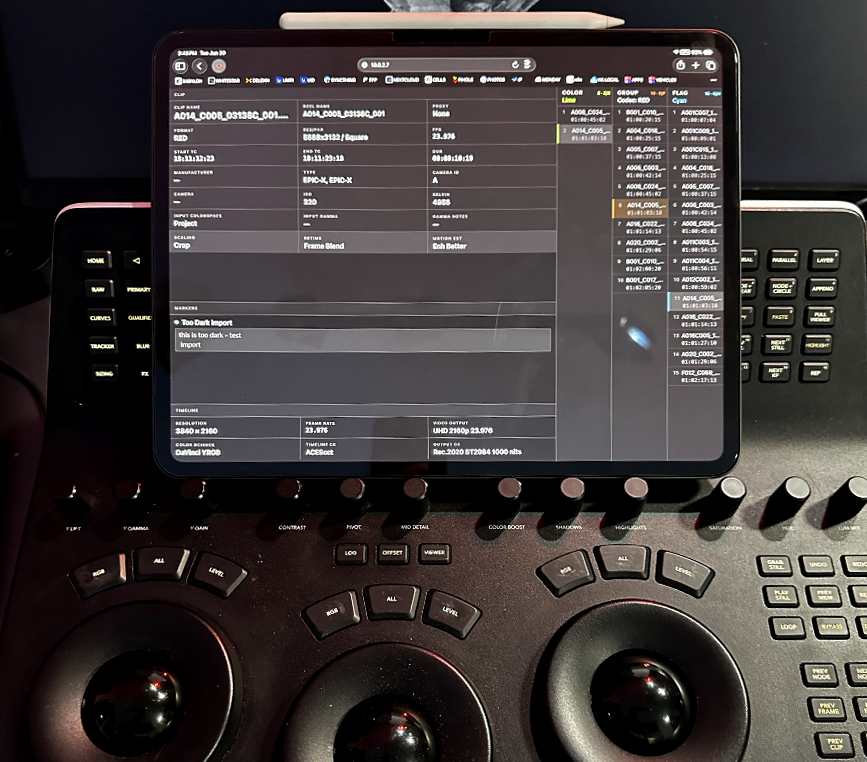
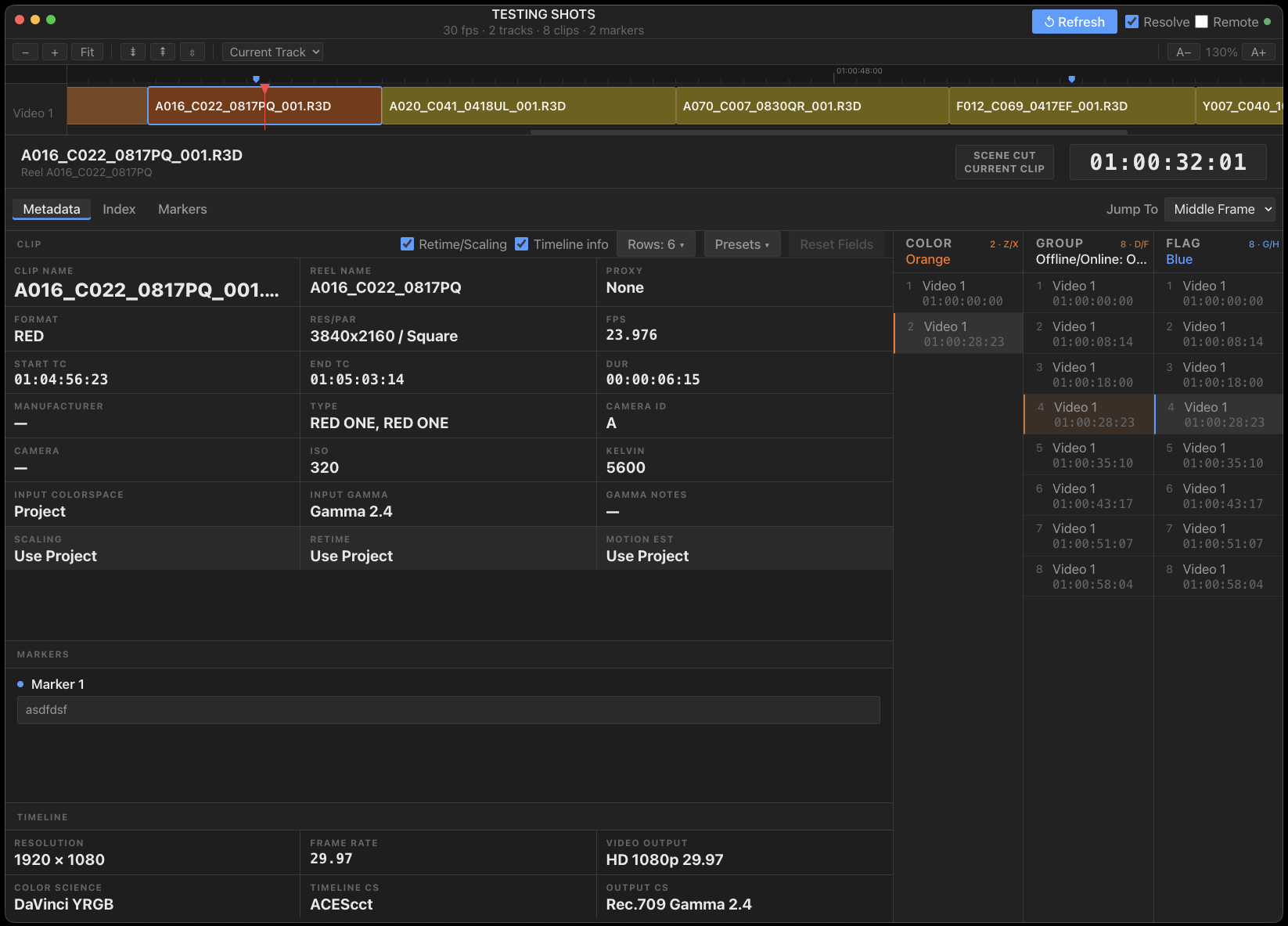
Colossus interface showing timeline, clip metadata, and navigation panels

Real-time session metadata
right where you need it.

Colossus extends your DaVinci Resolve workflow to a second screen, giving you continuous live access to clip data and unique navigation tools, all without leaving the color page. It stays in sync with your Resolve session as you work.

Clip Info

Essential metadata for the selected clip (reel, source file, codec, resolution, timecodes, LUT, color spaces, and more), always visible as you grade.

Clip Navigation

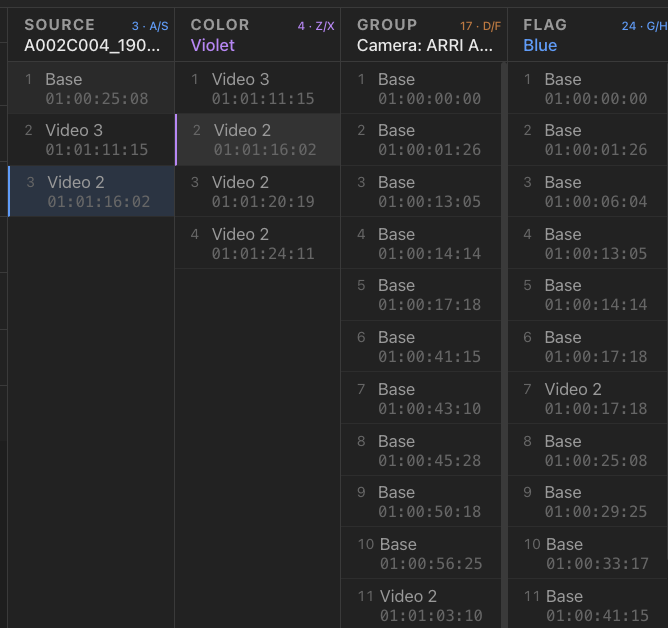
See every occurrence of the current clip by source, color, or group, and navigate between them with a single key.

9 Playheads

Nine independent timeline bookmarks you can set, recall, and jump between instantly.

Enhanced Index

Searchable and filterable clip index with batch actions: set color, clear color, enable, disable, toggle across any selection. Automatically color or group clips by any data field.

Markers

All your Resolve markers in one panel: full note text, timeline-synced, searchable, editable, and batch renderable.

Stream Deck

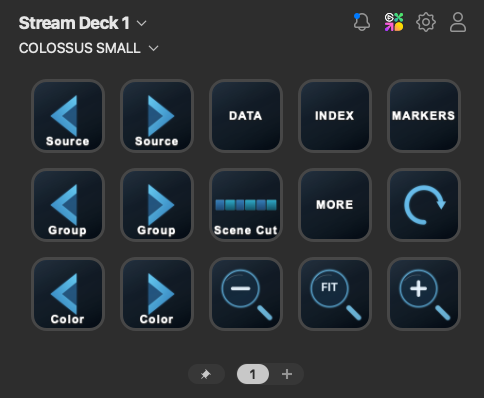
Native Stream Deck plugin with pre-built layouts for playheads, navigation, and index actions. Fully control Colossus without ever leaving the color page or switching away from Resolve.

Your Resolve timeline,
live on a second screen.

Colossus mirrors your active Resolve timeline in real time: every track and clip, with the playhead following you as you work. Timeline and project changes are detected automatically to keep you in sync during fast-paced sessions.

Colossus timeline view synced live with DaVinci Resolve

Resizable & Zoomable

Adjust track height and text size to fit your screen, then zoom in or fit the whole timeline with a key or the scroll wheel.

Scene Cut Detection

Trigger Resolve's scene cut detection on the selected clip from Colossus: it sets in/out points, runs detection, and reloads the timeline automatically. No need to leave the color page.

Large Timecode Display

A large display shows the current timecode, and new values can be jumped to instantly.

Deep clip data,
without leaving the grade.

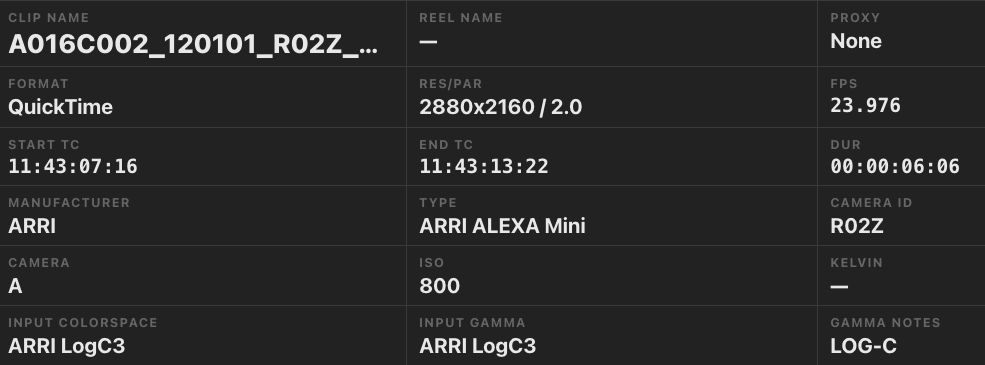
As you go shot to shot, Colossus follows along and shows you useful data about the current clip (reel, format, resolution, frame rate, source timecodes, camera info, color science), along with the timeline's own format, color space, and video output settings. Click any value to copy it to the clipboard.

Clip metadata panel showing format, resolution, timecodes, camera info, and color science
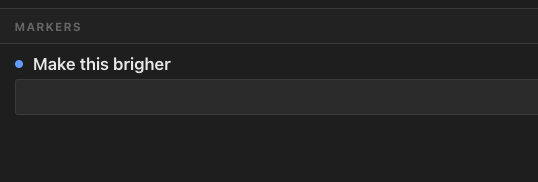
Marker notes for the selected clip shown inline in the inspector

Cycle clip properties with a click

Scaling, Retime Process, and Motion Estimation are shown right in the inspector and can be changed with a single click, keypress, or Stream Deck button. No need to switch pages or reach for the mouse.

  • Scaling: Use Project, Crop, Fit, Fill, Stretch
  • Retime Process: Use Project, Nearest, Frame Blend, Optical Flow
  • Motion Estimation: Use Project, Std Faster, Std Better, Enh Faster, Enh Better, Warp Better, Warp Faster
Scaling, Retime, and Motion Estimation cycling controls

Customize your metadata display and layout

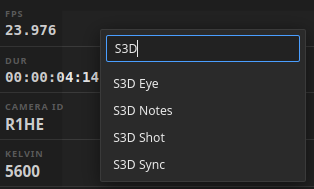
Right-click any field in the clip metadata panel to assign it to a different field. All clip metadata fields are available in a easy, searchable list.

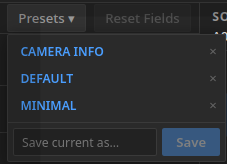
Save a field layout as a named preset, switch between presets instantly, and delete the ones you no longer need, all from the Presets menu above the grid.

Field remappings and presets are saved automatically and persist between sessions.

Right-click menu for remapping a metadata field to a different Resolve metadata key
Presets menu for saving, switching, and deleting metadata field layouts

Nine positions,
always within reach.

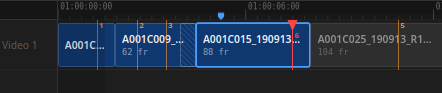
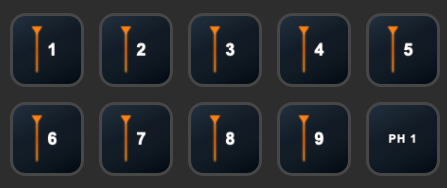
Capture up to nine timeline positions as bookmarks and return to any of them instantly, from Colossus or your Stream Deck. Ideal for holding reference shots or comparing grades across the cut without losing your place in the timeline.

Colossus playhead strip showing timeline bookmarks
Colossus playheads Stream Deck layout

Your full timeline, always at hand.

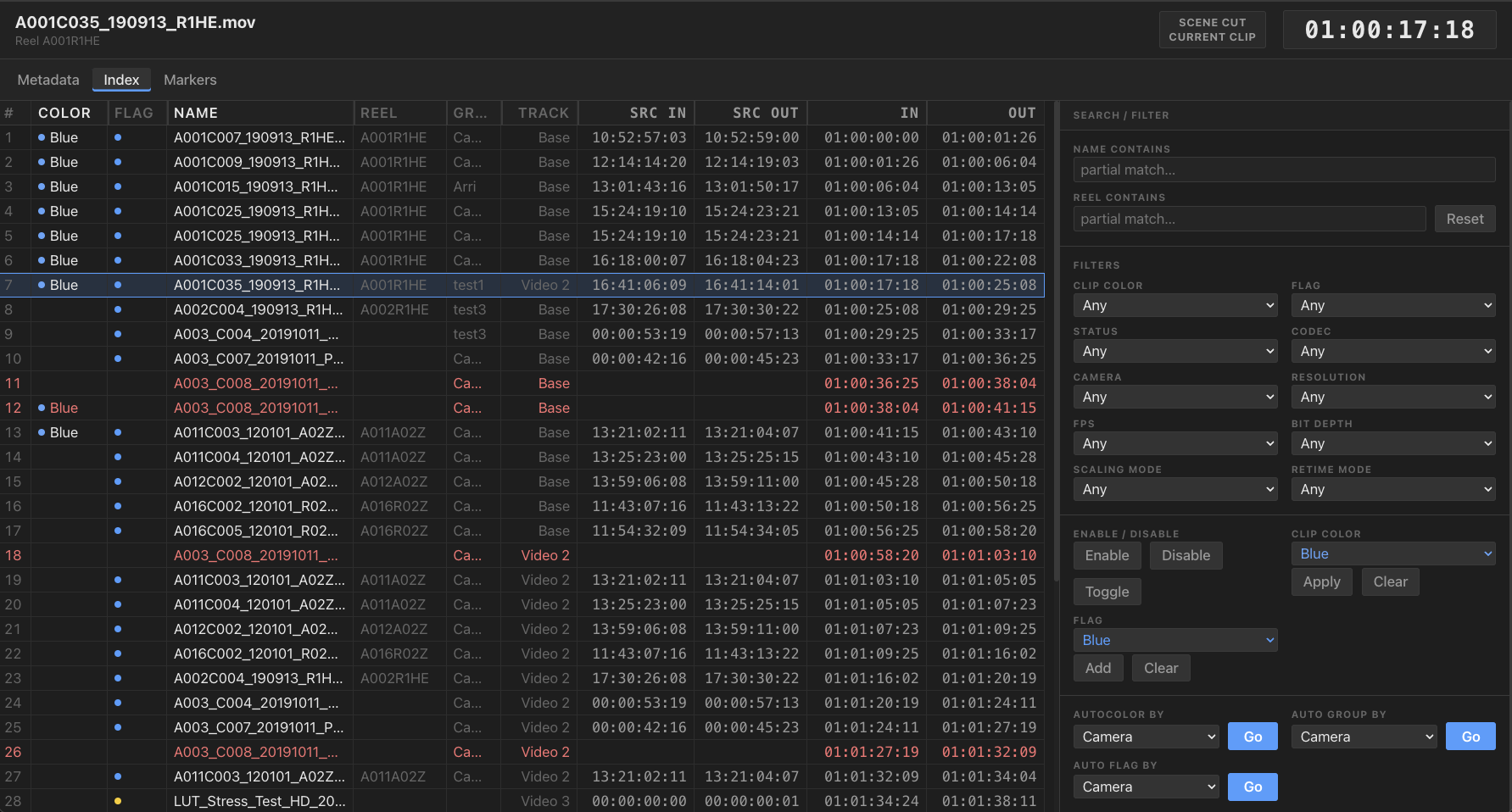
Colossus gives you a view of every clip in your Resolve timeline in one searchable, sortable panel. Use the index to find clips based on any criteria, and apply batch changes to them.

Colossus clip index table

Filter, act, and organize

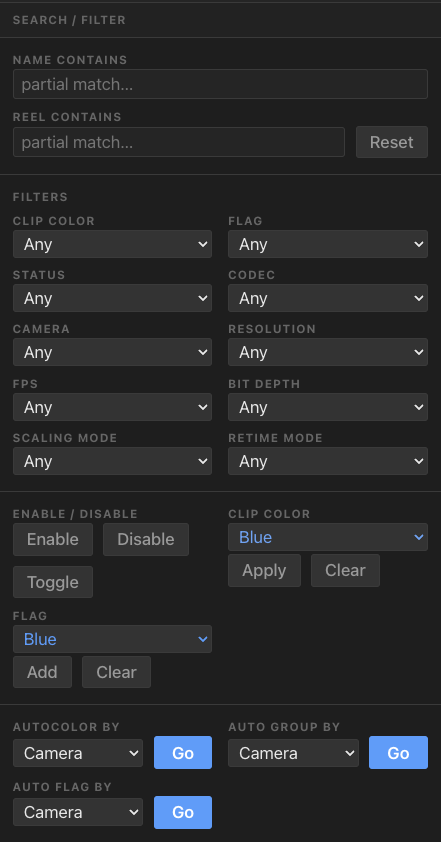
Filter your timeline in real time by name, reel, color, flag, group, codec, resolution, camera, bit depth, or offline status. Apply batch actions across the filtered set: enable/disable/toggle, set color, clear color, set flag, clear flag.

Automatically apply colors, groups or flags based on any chosen metadata field.

These batch tools (auto-coloring, grouping, and clip operations) are the same functionality as the dedicated scripts in our Workflow Scripts collection, and are included with Colossus at no extra charge.

Colossus search, filter, and auto color/group controls

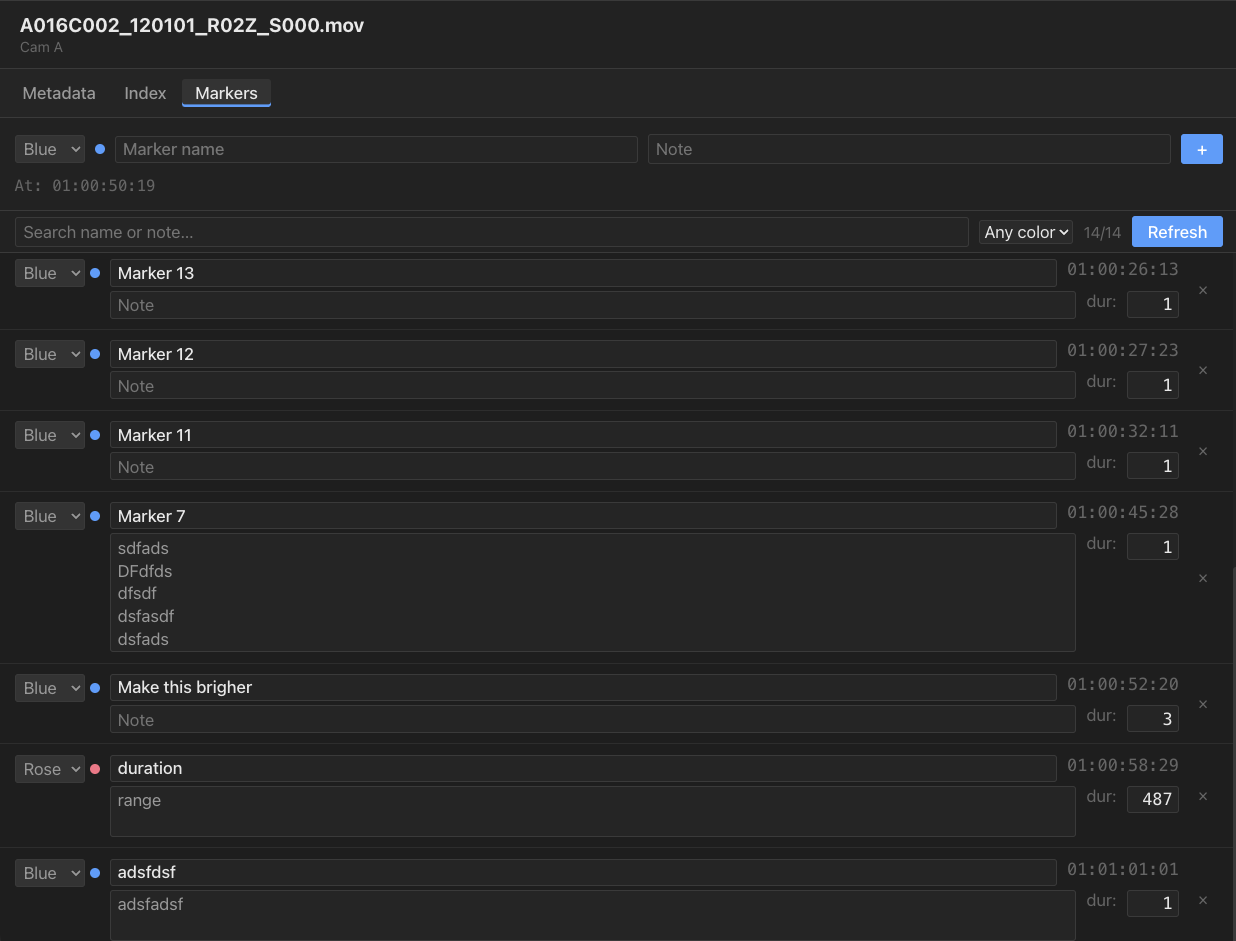
All your markers, easily visible.

Colossus shows the full text, color, duration, and timecode for every marker in the timeline. Edit, search, or filter markers by color. The current marker is synchronized to your playhead as you move through the timeline.

Colossus markers panel showing full note text
  • Full note text always visible
  • Color, type, duration, and timecode at a glance
  • Synchronized to your Resolve playhead
  • Search across all markers by name or note text
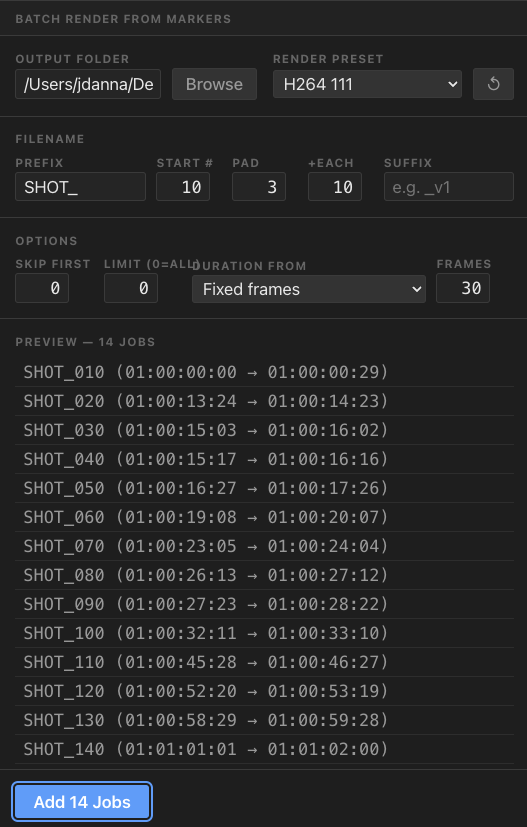
Batch Render from Markers

Turn markers into DaVinci Resolve render jobs in one step: select the markers, define your file naming and duration properties, and Colossus creates the jobs. This is the same functionality as the Batch Render script in our Workflow Scripts collection, included with Colossus at no extra charge.

Batch Render from Markers dialog

Move markers in and out of Resolve.

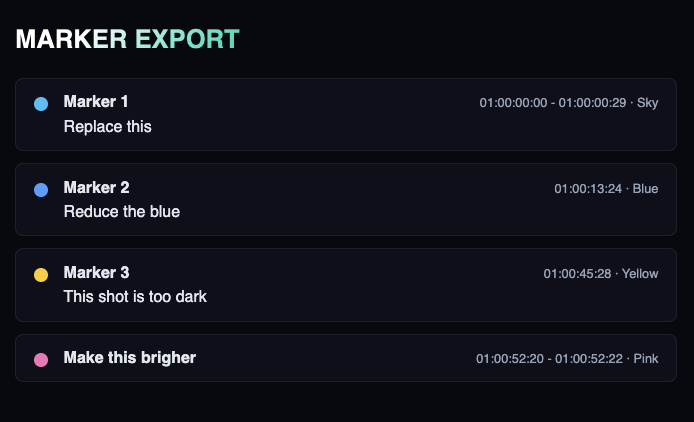
Import markers from a spreadsheet or any other CSV source. Export your timeline's markers back out as a file you can share, archive, or re-import later.

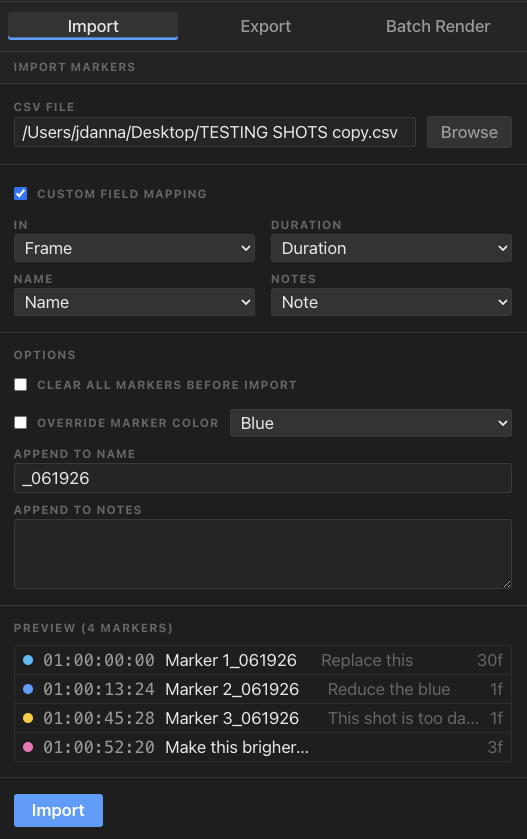
Import Markers

Add markers to the current timeline from a CSV file. Colossus reads its own exports as well as Frame.io CSV exports automatically. Any other format can be custom mapped.

  • Clear all existing markers first, or add the import alongside what's already there
  • Custom CSV field mapping - choose which columns map to position, duration, name, notes, and color
  • Automatic detection of timecode vs. frame number for marker position and duration
  • Override the color of every imported marker, or append custom text to names and notes
  • Preview the parsed markers before importing to verify your field mapping is correct
Import Markers panel with CSV field mapping and import options
Export Markers panel with format and output options
HTML marker export report with color swatches

Export Markers

Output the current timeline's markers to a file in both machine and human-readable formats.

  • CSV - Full In/Out, Name, Note, Sequence Name, and Color columns, ready to re-import into Colossus or use in any other workflow
  • Text - A simple readable list with timecode range, color, and name/note text for each marker
  • HTML - A styled, self-contained report with a color swatch per marker, ready to open in a browser or send by email

Extra control,
eyes on the grade.

Adding a Stream Deck to your setup gives you extra control without taking your attention away from the color page. Colossus ships with a native plugin and pre-built default layouts.

Stream Deck layout showing Colossus navigation, index, and zoom actions

Licensing that gets
out of your way.

Colossus is a perpetual, per-machine license for macOS and Windows. Pay once, own it. No subscriptions, no phoning home.

Colossus connects to DaVinci Resolve over your local network, making it equally at home on an assist station as it is running beside Resolve locally.

Frequently Asked Questions.

Licensing
Can I install on more than one machine?

Colossus is licensed per machine. We don't ever phone home or probe your network - but we ask that if you are using it on multiple machines, you purchase a license for each one.

Does Colossus work over a network?

Yes. Colossus connects to DaVinci Resolve over your local network, so it can run on an assist station or any other machine on the same network as your Resolve system, with no special configuration required beyond your normal local network setup.

Is there a demo or trial available?

Time-limited demo licenses are available on this page.

Updates
Are updates included with my license?

Bug fixes and minor feature updates are always free. Major feature updates may carry a future upgrade cost, but we'll be transparent about that if/when the time comes.

Where do I download the latest version?

Current installers are always available at retrograde.tools/colossus/download.


from
Retrograde Labs

Get Colossus.

Your real-time Resolve companion: everything about your session, always within reach.

macOS + Windows License
Perpetual license
14-day money-back guarantee · No subscription - pay once · Secure checkout via Paddle
Retrograde Labs More from Retrograde Labs